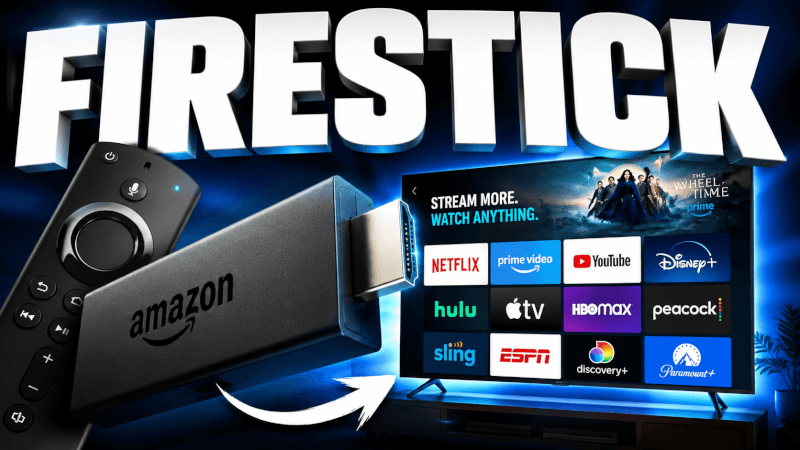
The Amazon Firestick is the most popular way to watch IPTV. This guide shows you exactly how to install IPTV on a Firestick or Fire TV using the free IPTV Smarters app — the whole setup takes about 5 minutes.
Step-by-Step: How to Install IPTV on Firestick & Fire TV (2026 Guide)
- From the Firestick home screen, hover over the Find tile and click Search.
- Search for Downloader, select the Downloader app, install it and open it.
- Go to Settings → My Fire TV → Developer options and turn on Install unknown apps for Downloader.
- Open Downloader, allow permissions, and in the URL box enter
https://www.iptvsmarters.com/smarters.apkthen click Go. - When the download finishes, click Install, then Done.
- Open IPTV Smarters and choose Login with Xtream Codes API.
- Enter the login details (username, password and server URL) we send you by email or WhatsApp, then start watching. Enjoy!
That’s it — once you’re logged in you’ll have access to all 25,000+ live channels and 100,000+ movies & series in up to 4K. If anything doesn’t work, our support team is on WhatsApp 24/7.
Frequently Asked Questions
Yes — the IPTV Smarters app is completely free to download. You only need an active IPTVCORE4K subscription to log in and stream.
IPTV player apps aren’t in the Amazon App Store, so you side-load them via the Downloader app. Enabling unknown apps for Downloader is safe and standard.
A VPN is optional. It can help avoid ISP throttling during peak hours, but IPTVCORE4K works fine without one.